OBS settings for streaming GTA 6: resolution, bitrate and a test
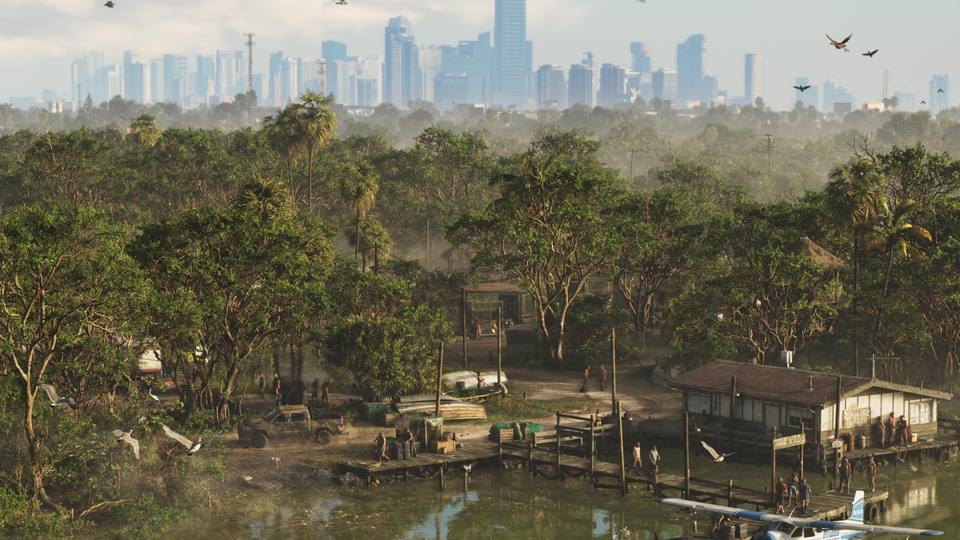
The starting point is 1920 x 1080 at 30 frames per second.
Resolution and frames
A higher console refresh rate doesn't add new states to the game, so there's no need to force it at 30 fps.
Bitrate and codec
They depend on the service, the connection and the encoder, so check the platform's current table for your codec and resolution. For YouTube pick the row matching your frame count, and for Twitch start from the recommendations in the broadcaster panel. The text doesn't recommend a specific codec.
Wizard
The Auto-Configuration Wizard in the Tools menu helps you choose settings.
Test
Record a short clip with movement locally. If the file stutters, the problem is in the picture source or encoder load. If the file is fine but the stream stutters, check the OBS stats, dropped frames on upload and your connection headroom.
Release-week data, unofficial, written in my own words. May change after patches and new Rockstar announcements.
Frequently asked questions
What resolution to start with?
1920 x 1080 at 30 frames.
What bitrate?
It depends on the platform and your connection, check its table.