Graphics settings in GTA 6: HDR, motion blur, ray tracing and PS5 Pro
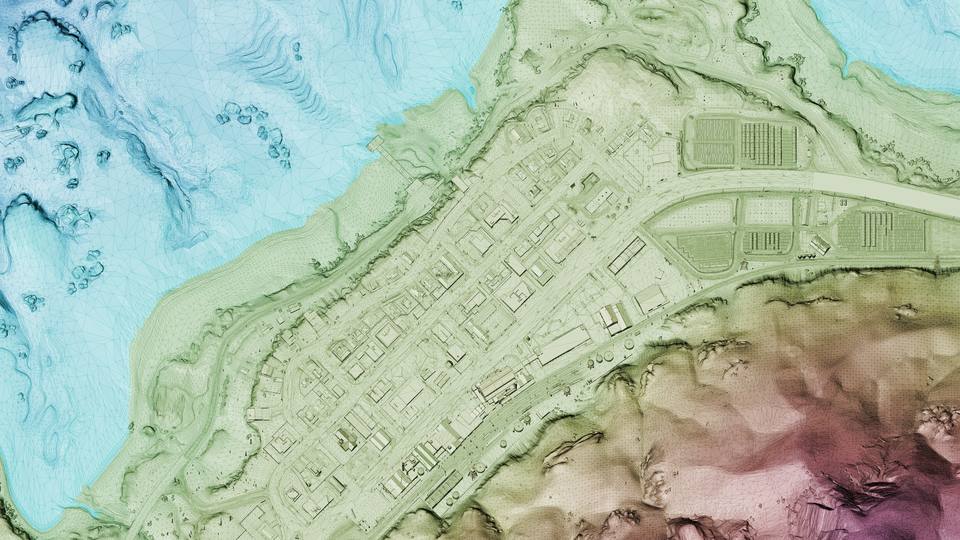
GTA 6 has no graphics modes, but a few settings clearly improve the picture.
What is missing
There is no performance/quality switch. The game runs at 30 frames on every console, including PS5 Pro, and ray tracing is permanently on.
PS5 Pro
The improvements work automatically: PSSR image reconstruction and ray-traced shadows. According to Digital Foundry, the Pro renders at 1440p and reconstructs the image to near-4K quality.
HDR calibration
On PS5 first set HDR in the system (Screen and Video > Video Output), then run the HDR adjustment, and only then calibrate in the game in the Image tab. You have three sliders: maximum brightness, black levels and base white. When detail is lost in shadow, adjust the black level. When highlights lack detail, go back to maximum brightness. Change one parameter at a time.
Motion blur
The Motion Blur Range option is in Settings > Image > Graphic Effects and is 3 by default. Raising it to 6–7 smooths camera turns at 30 frames, but does not increase the frame count. Fast turns may show smearing, and at high values some people feel symptoms similar to motion sickness.
TV and vignette
Turn on game mode and turn off interpolation on the TV. If it has HGIG, turn it on. You can weaken the dark vignette at low health with the Player Status Effects Intensity slider (default 5).
The data comes from release-week guides and is not official. The numbers may change after updates.
Frequently asked questions
Is there a performance mode?
No.
How do I smooth the image?
Raise motion blur to 6–7.